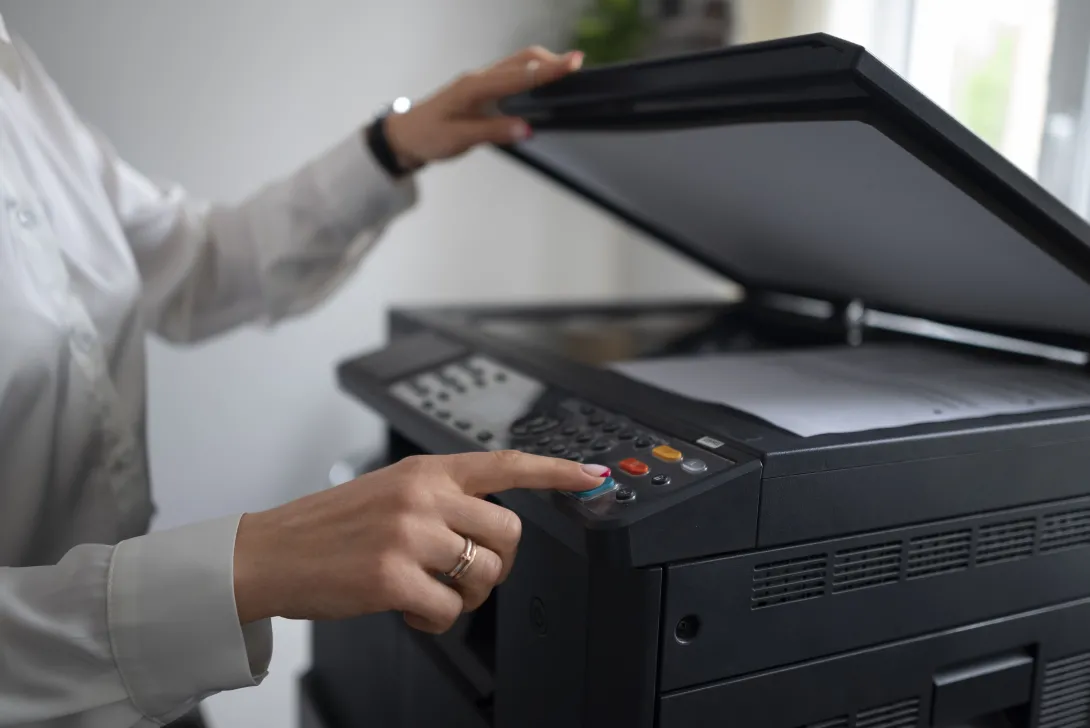
Whether you’re working in a busy office or at home, a malfunctioning printer can disrupt your entire workflow. Fortunately, many printer issues can be solved by following a systematic troubleshooting process. Below are some practical steps to get your printer up and running again:
1. Verify Physical Connections
Before diving into more complex solutions, make sure your printer is properly powered and connected.
- Check power and cables: Ensure the printer’s power cord is securely plugged in. If you’re using a USB or Ethernet cable, confirm it’s inserted properly at both ends.
- Inspect network connections: If it’s a network printer, look for the link/activity lights on the Ethernet port or router/switch to confirm the device is recognized on the network.
2. Power Cycle Devices
A quick restart can often resolve minor glitches.
- Restart the printer: Turn the printer off, wait a few seconds, and power it back on.
- Reboot the computer: If you’re printing from a specific computer, restart it as well. This ensures any software or driver hiccups are cleared.
3. Verify Network or USB Configuration
Once you’ve confirmed that physical connections are in place, verify the device’s network or USB settings.
- Check IP address (for network printers): Print a configuration page from the printer’s control panel or check its screen to ensure it has an IP address in the correct network range.
- Confirm USB recognition (for USB printers): On the computer, open your devices list or printer settings to see if the printer is recognized.
4. Test Connectivity
Ensure that your devices can communicate properly.
- Ping the printer (Windows/Mac/Linux): If you’re on the same network, open the command line or Terminal and type
ping <printer IP>to see if it responds. - Temporarily disable firewalls: If the printer doesn’t respond to pings, try turning off any firewall or security software temporarily and test again.
5. Check Print Spooler and Drivers
Software settings can often be the culprit of printer problems.
- Restart the spooler service (Windows): Go to Services (services.msc), find the Print Spooler, and restart it. Clear any stuck print jobs if necessary.
- Update or reinstall drivers: Remove any outdated drivers and install the latest manufacturer drivers to ensure compatibility with your operating system.
6. Ensure Firmware Is Up to Date
Printer manufacturers regularly release firmware updates to fix bugs and enhance functionality.
- Download from the manufacturer’s website: Check for any available firmware updates. Follow the instructions carefully to avoid potential installation errors.
7. Perform a Self-Test or Direct Connection
Identifying whether the issue is hardware- or network-related helps narrow the root cause.
- Print a self-test page: Most printers can print a test page directly from their onboard menu or settings.
- Connect via USB (if applicable): If your printer is network-enabled, try connecting it directly via USB to a computer. If it prints normally, the root cause likely lies in your network settings.
8. Document and Communicate
Once your printer is functioning properly, it pays to keep a record of the issue and solution.
- Document what worked: Note any changes made, such as drivers updated or network settings altered.
- Prevent future issues: If multiple users or devices connect to the printer, share these steps or keep them handy for reference.
Conclusion
Printer issues can often be resolved with a structured troubleshooting approach. By following the steps above—verifying connections, updating drivers, and isolating hardware from network settings—you’ll be back to printing in no time. Make sure to document your successful fixes to streamline future troubleshooting efforts and maintain efficient workflows!
Final Thoughts: Balancing DIY Fixes with Professional Services
While these steps can resolve many printer problems, complex or recurring issues often need an expert’s touch—especially when business continuity is at stake. By providing knowledgeable, proactive support, our team helps prevent extended downtime and costly disruptions. If you’re ever in doubt or run into advanced troubleshooting hurdles, don’t hesitate to reach out for professional assistance.
Need help with a persistent printer issue—or want a more robust office printing solution?
Contact us at Termondt Tech for expert advice and support.